As part of the adoption of our new TELUS Health identity, an automatic forwarding of emails received on your Human & Work mailbox to your @telushealth.com mailbox can be set up.
Here are the steps to follow if you wish to add automatic forwarding with a copy from Human & Work to TELUS Health:
- Remove automatic forwarding from your TELUS Health mailbox
- Add automatic forwarding with a copy of Human & Work emails to TELUS Health
1. Remove automatic forwarding from your TELUS Health mailbox
| Important: The operations in this section must be followed with your TELUS Health account and are essential for the proper functioning of the future automatic forwarding "HW to TH". |
- To view the forwarding configuration on the TELUS Health side, click on the link below in a private browsing tab and/or by authenticating with your TELUS Health account: https://outlook.office.com/mail/options/mail/forwarding/forwardingOption
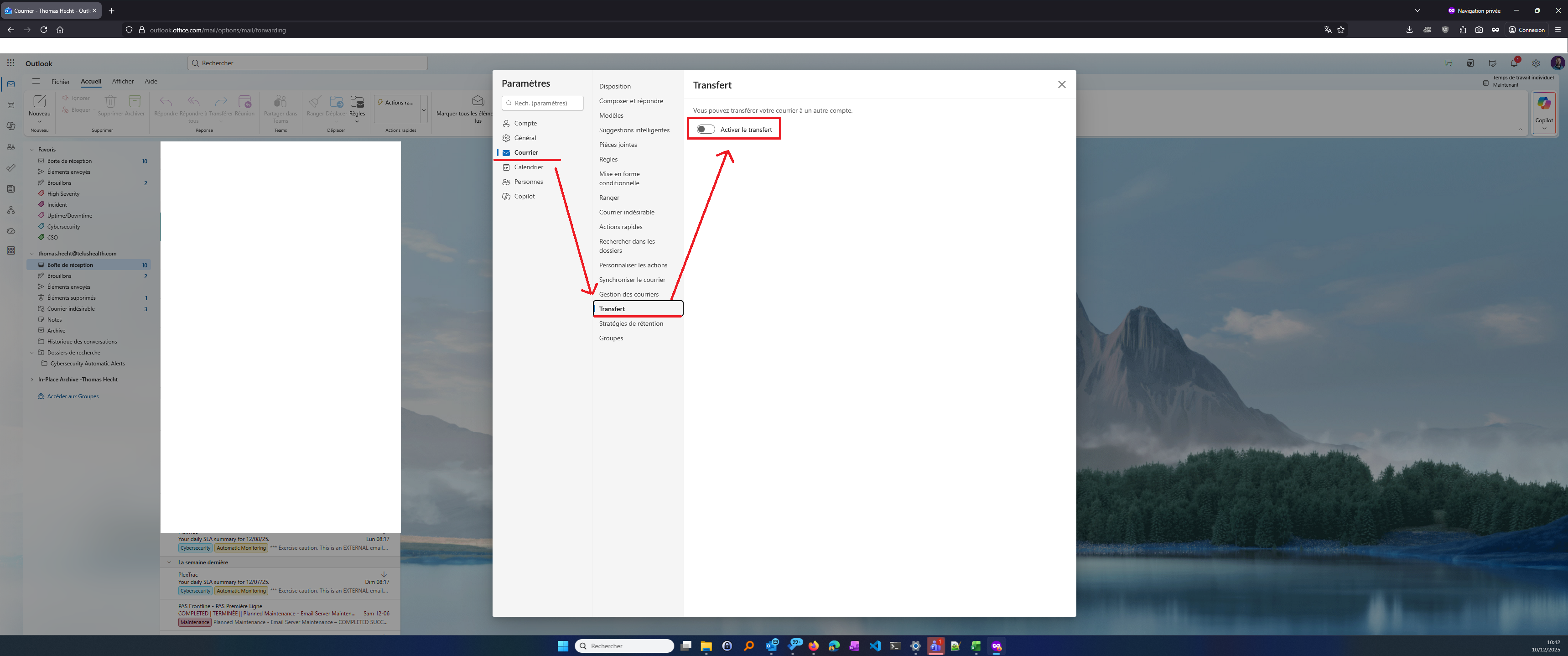
- If forwarding is active on your TELUS Health account, deactivate it.
The procedure is simple:
Access the link above in the TELUS Health environment.
Uncheck the "Enable forwarding" box.
Click on "Save".
2. Add automatic forwarding with a copy of Human & Work emails to TELUS Health
| Important: The operations in this section must be followed with your Human & Work account |
- To view the forwarding configuration on the Human & Work side, click on the link below in a private browsing tab and/or by authenticating with your Human & Work account: https://outlook.office.com/mail/options/mail/forwarding/forwardingOption
- Set up the automatic forwarding with a copy towards TELUS Health.
The procedure is simple:
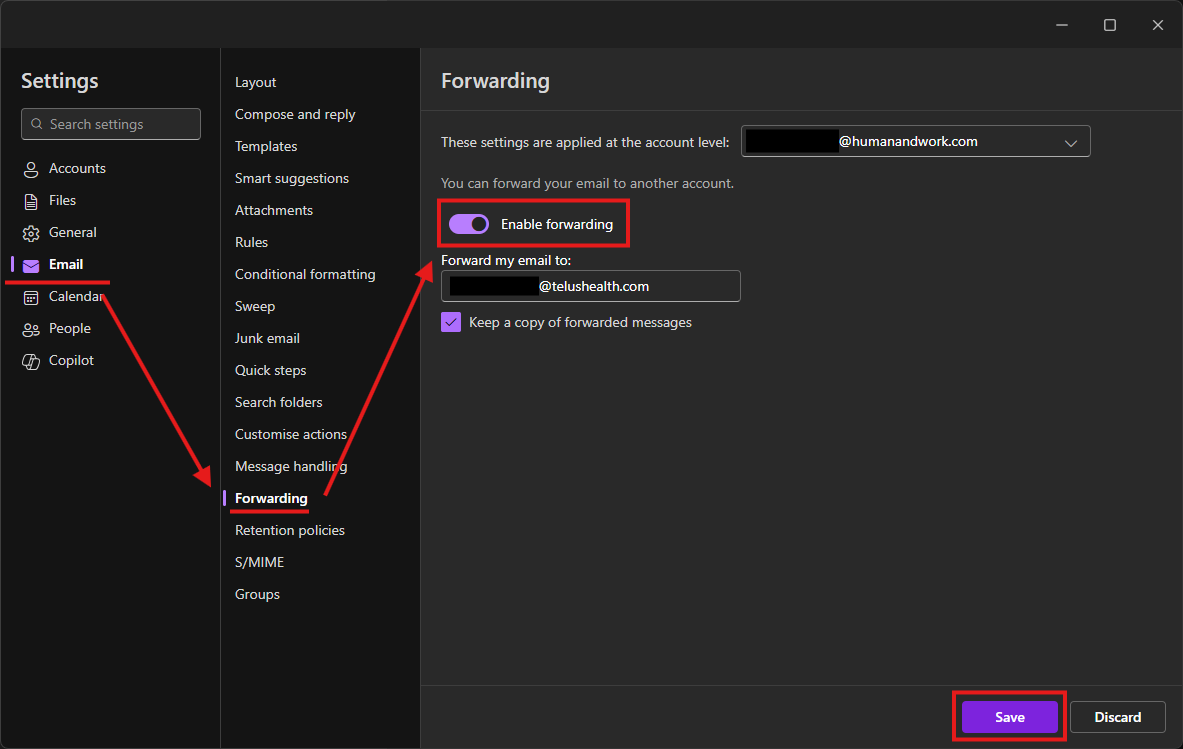
Access the link above in the Human & Work environment.
Check the "Enable forwarding" box.
Add your @telushealth.com address.
Check the "Keep a copy of forwarded messages" box.
Click on "Save".
Cet article a-t-il été utile ?
C'est super !
Merci pour votre commentaire
Désolé ! Nous n'avons pas pu vous être utile
Merci pour votre commentaire
Commentaires envoyés
Nous apprécions vos efforts et nous allons corriger l'article