Recommended method:
Schedule an absence in Outlook web / new
You can follow this direct link to the automatic replies menu in the Outlook web interface:
https://outlook.office.com/mail/options/accounts-category/automaticReply
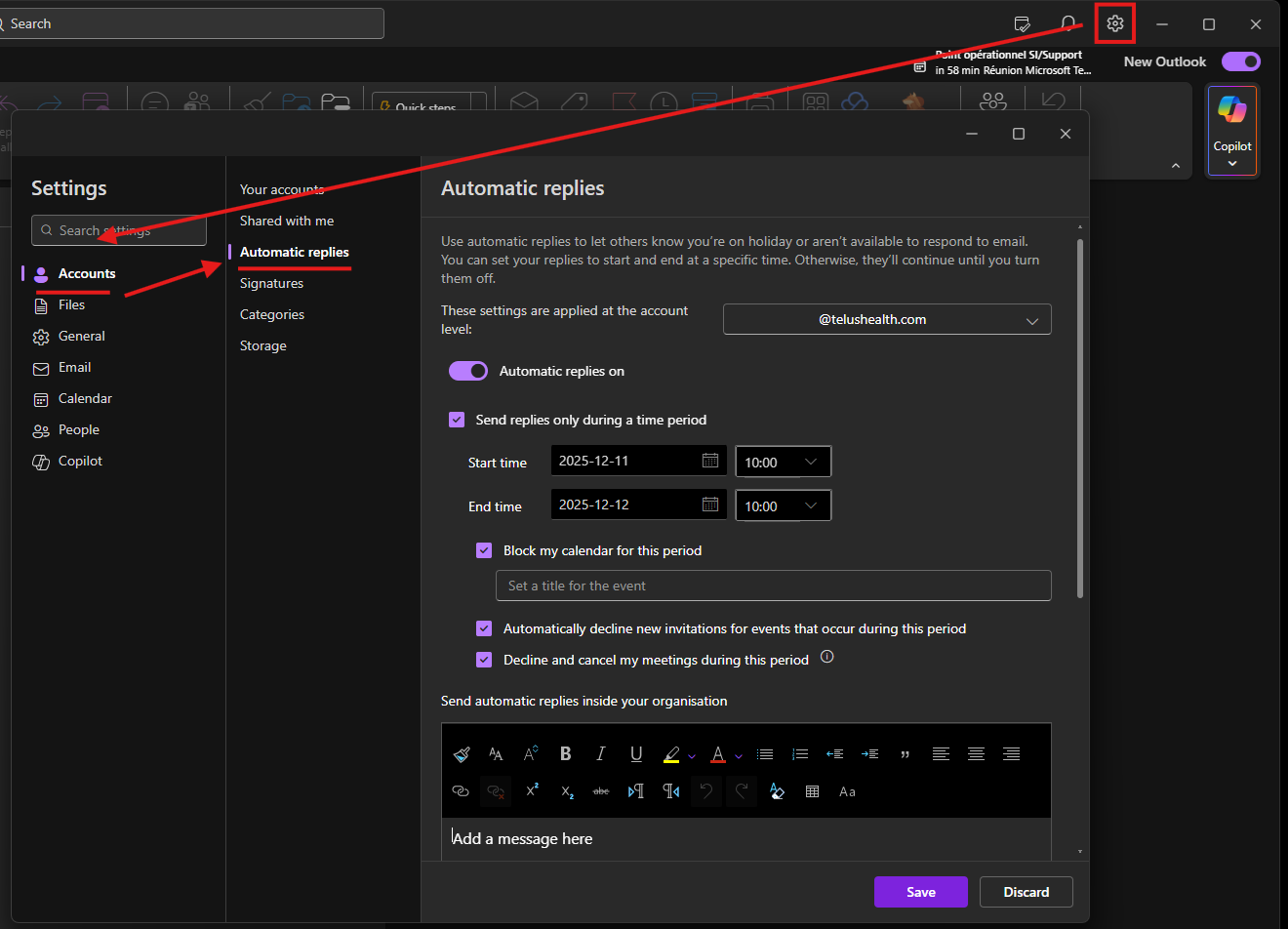
This screenshot shows the process in the Outlook new app, the menu layout is the same as on the web version.
Other methods:
Schedule an absence in Outlook desktop (classic)
- Create an "Out of office" event in the calendar

- Open Outlook: Go to the Calendar section.
- Create a new event: Click on "New Appointment" or "New Meeting."
- Set the details: In the window that opens, specify the subject (e.g., "Leave") and the start and end dates of the absence.
- Set the status: Under "Show As," select "Out of Office" to indicate your absence to others.
- Notify participants: If necessary, add participants to inform them of your absence.
- Add an automatic reply message: Use the "Automatic Reply" option to send a message to anyone emailing you during your absence. This message can include your absence dates and an emergency contact.


At this point, you can also set a custom message for external contacts via the "Outside my organization" tab.
Plan an absence in Teams
Microsoft Teams is directly synchronized with Outlook, making it easier to manage your absence status.
Automatic absence status in Teams
- Create the absence event in Outlook: As described earlier, create an absence event in your Outlook calendar.
- Automatic synchronization: Once the absence event is created in Outlook, your status in Teams will be automatically updated to show that you are out of the office during the defined period.
- Display the absence message: Other users will see an indicator of your absence in Teams, reflecting the same information set in Outlook.
Cet article a-t-il été utile ?
C'est super !
Merci pour votre commentaire
Désolé ! Nous n'avons pas pu vous être utile
Merci pour votre commentaire
Commentaires envoyés
Nous apprécions vos efforts et nous allons corriger l'article