1. Prerequisites: Activation and Initial Setup
This step is mandatory before moving forward.
Follow the tutorial provided by TELUS Health, or this article.
If you experience any difficulties, contact support@humanandwork.com.
As a reminder, we recommend using two separate browsers to clearly separate your two accounts.
→ You can refer to this article on the topic.
For your information, your account can be considered fully set up if you meet the following criteria:
you have set your new password
you have configured two-factor authentication using the Microsoft Authenticator app on your work phone
you have added your work phone number as a secondary authentication method
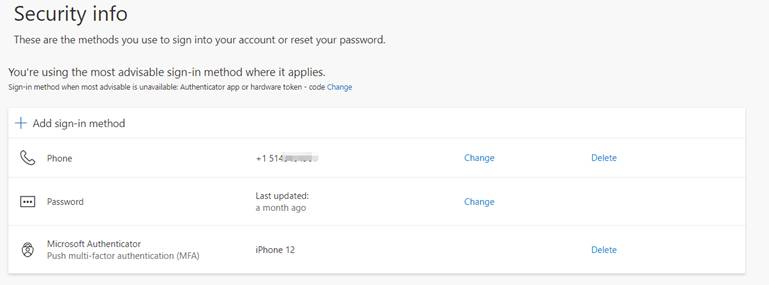
https://mysignins.microsoft.com/security-info
2. Switching to the “New Outlook*”
In Outlook Desktop, enable the “Try the new Outlook” toggle (usually in the top right) to launch the new interface.
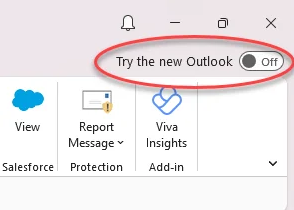
* The new version is a copy of the outlook.office.com website. Using it guarantees the synchronization of the changes made in this tutorial with the server, so that they are retained on the webmail (signature, contacts, etc.).
If you encounter any problem with the new version, you will always be able to switch back to the old one (you might have to redo some settings, such as the signature, which is not synchronized on the classic version of Outlook).
Your emails and folders remain unchanged from one version to the other.
3. Adding the TELUS Health Account
Add your account in this new version of Outlook.
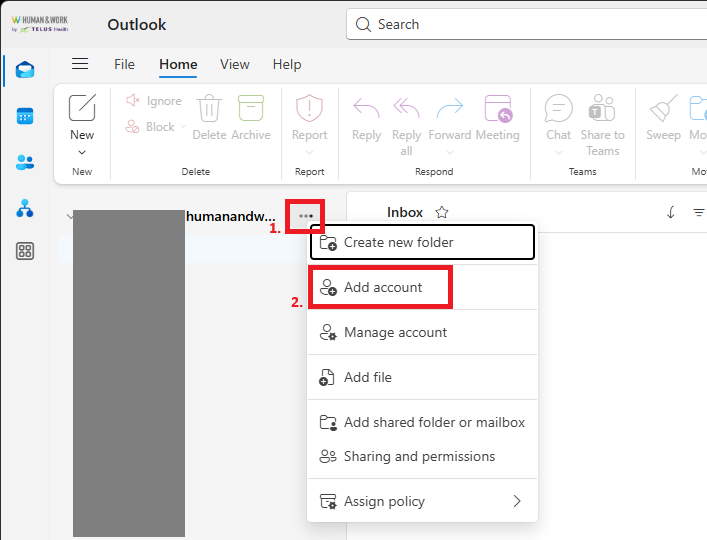
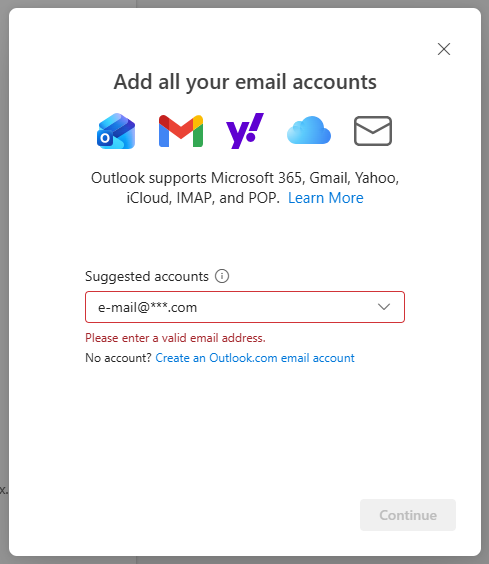
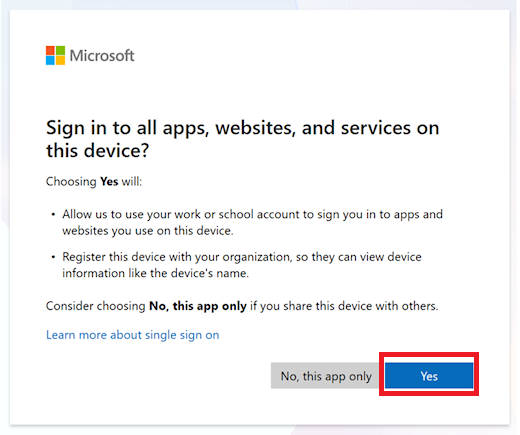
At the prompts “Sign in to all apps and services on this device?” and “Allow your organization to manage your device?”, click Yes.
4. Setting the Primary Account
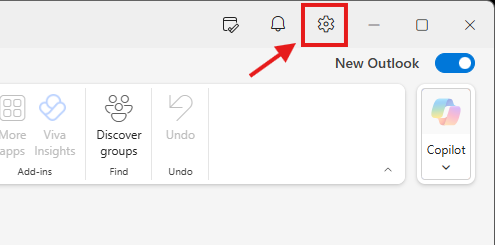
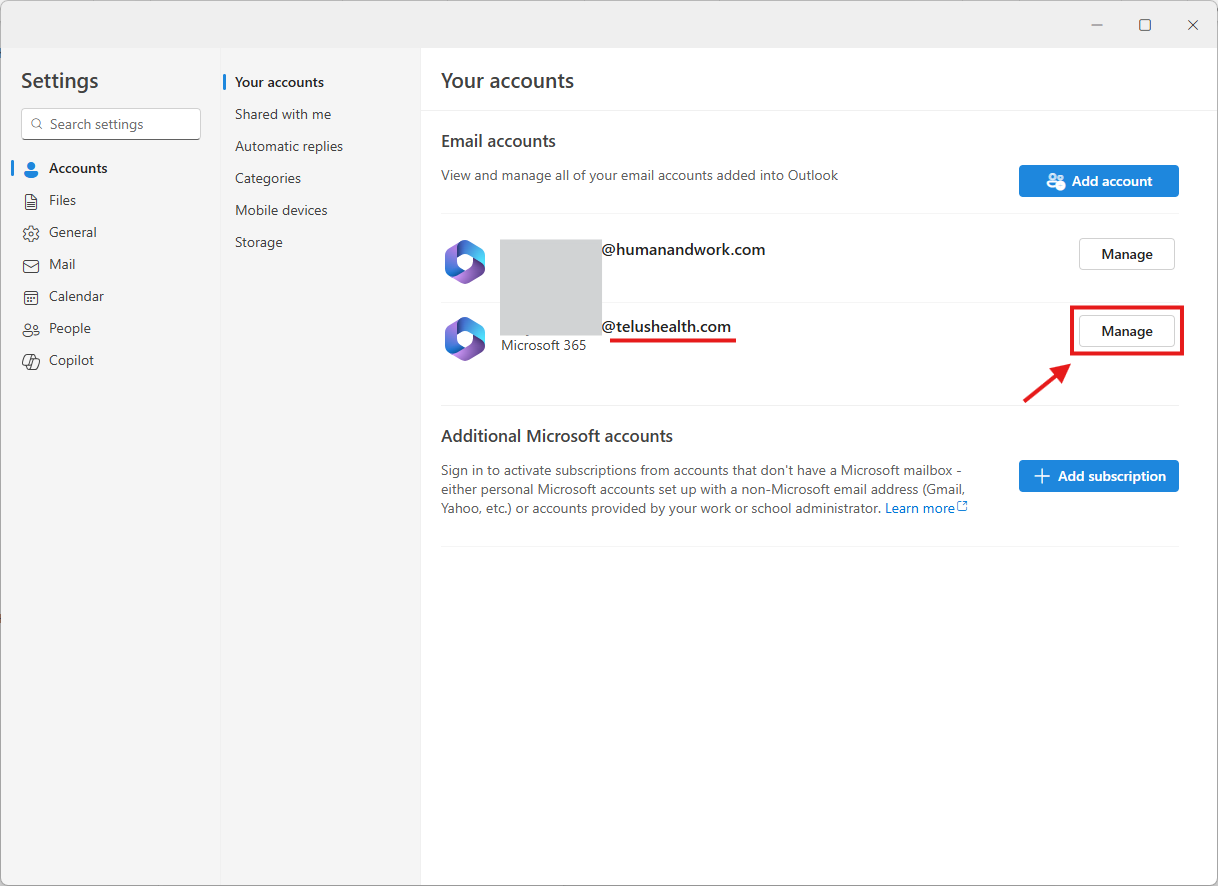
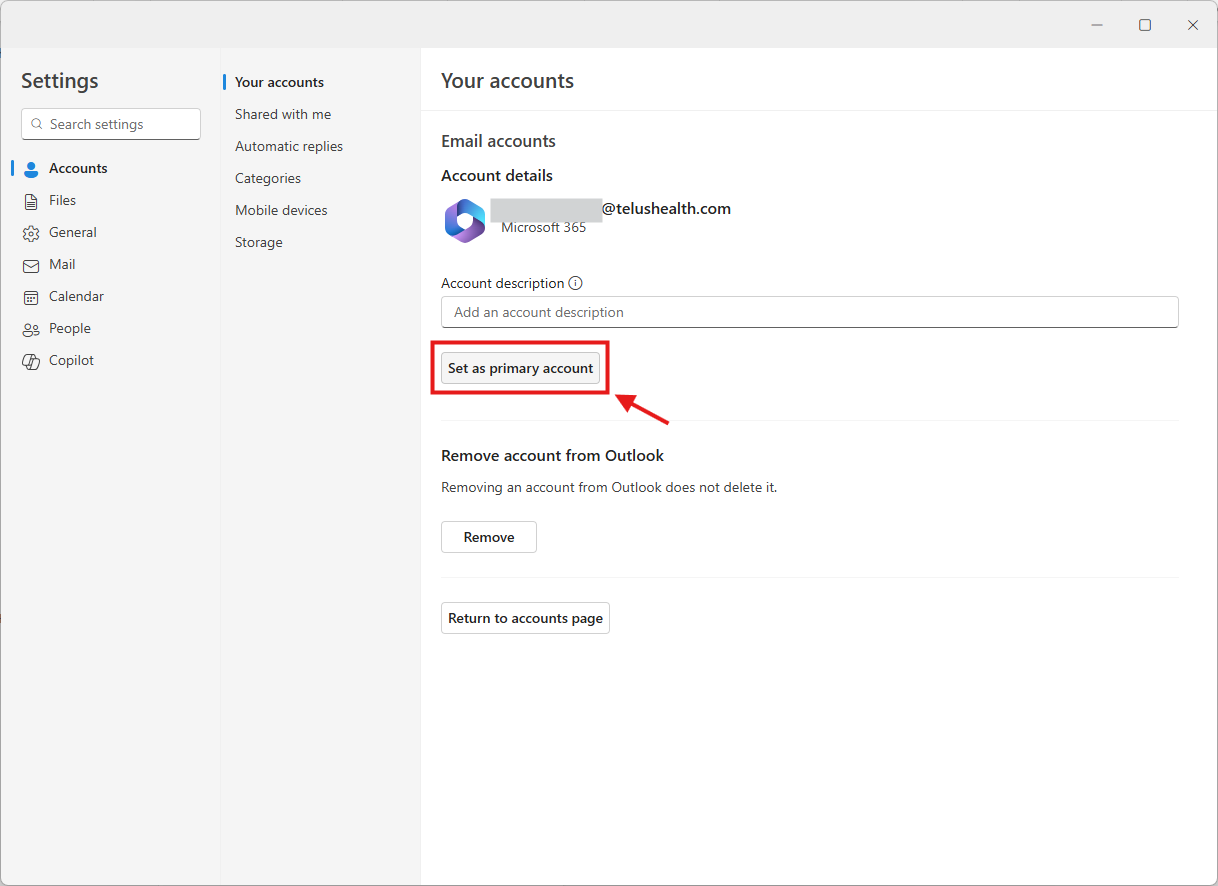
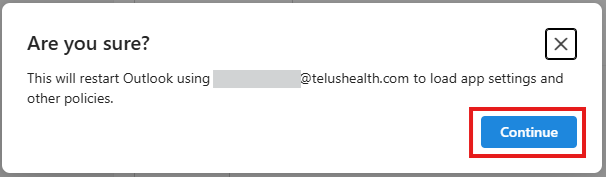
In Outlook settings, set the TELUS Health account as your “Primary account”.
5. New Signature
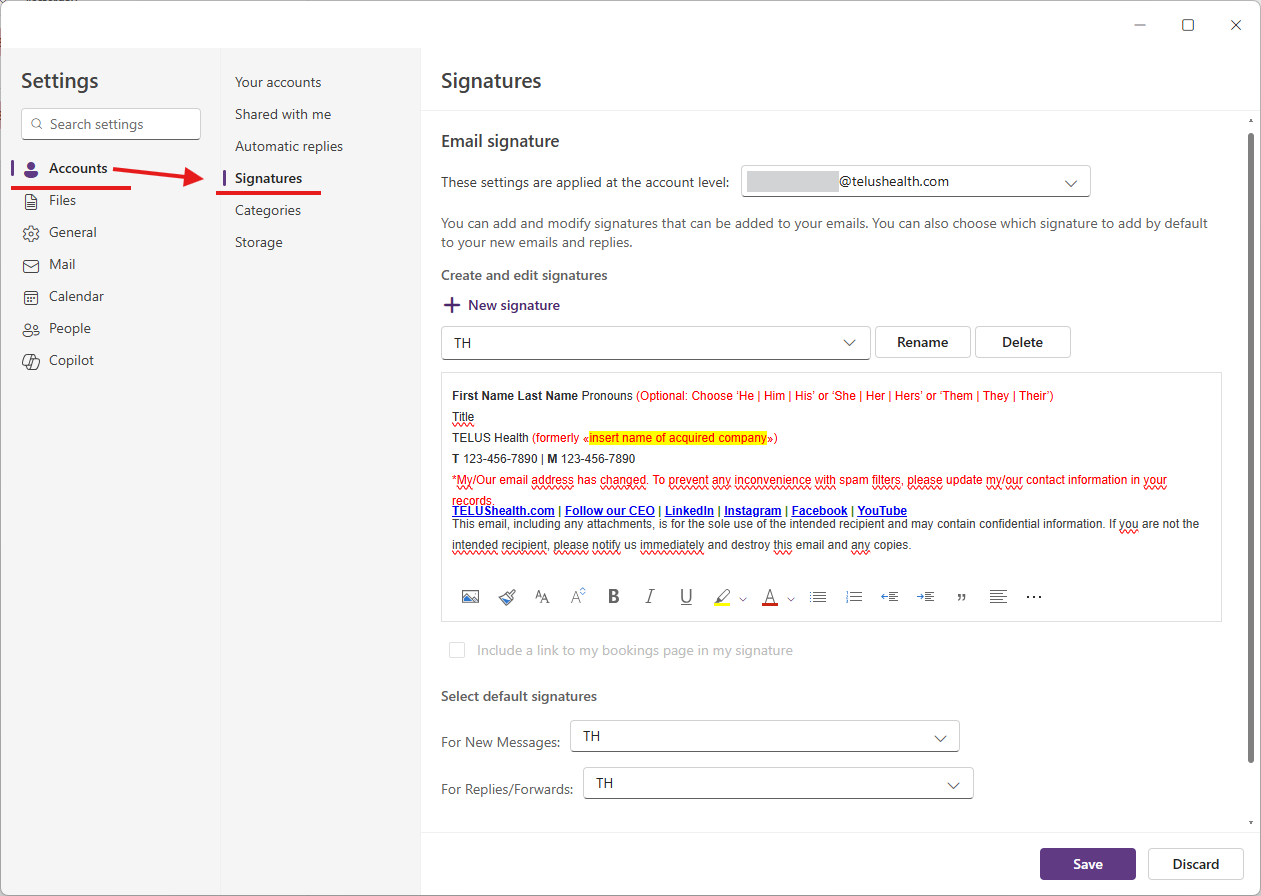
Add and configure your new professional signature for the TELUS Health account.
The template is available on the TELUS “Team Member Rebrand Microsite”.
6. Teams Verification
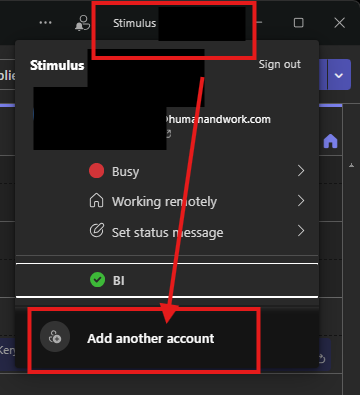
Make sure the TELUS Health account is added and signed in within your Teams application.
Teams backgrounds are available on the TELUS “Team Member Rebrand Microsite”.
7. Calendar Visibility
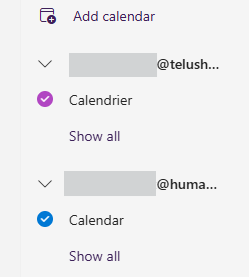
- Check the display of both calendars in Outlook :
- To see your calendars appear in both Teams applications, share your calendars from one account to the other.
- Repeat this operation for each account (share from each account to the other) :
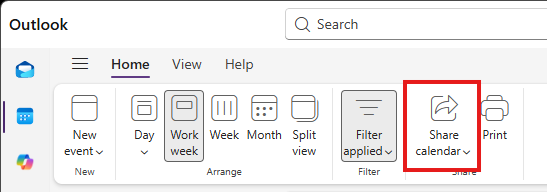
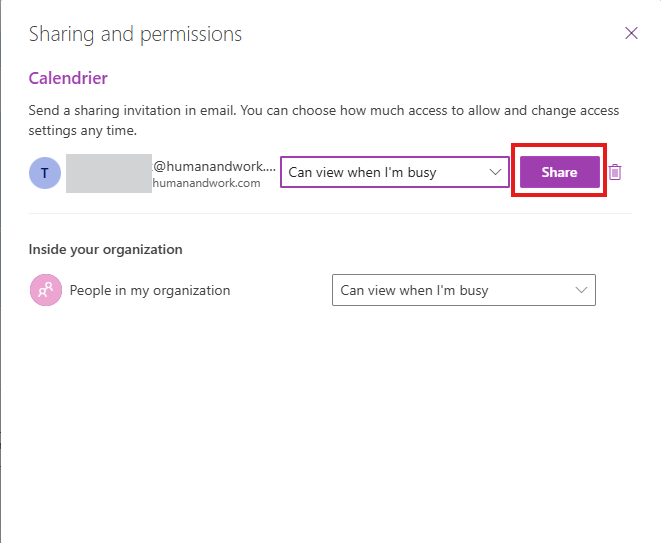
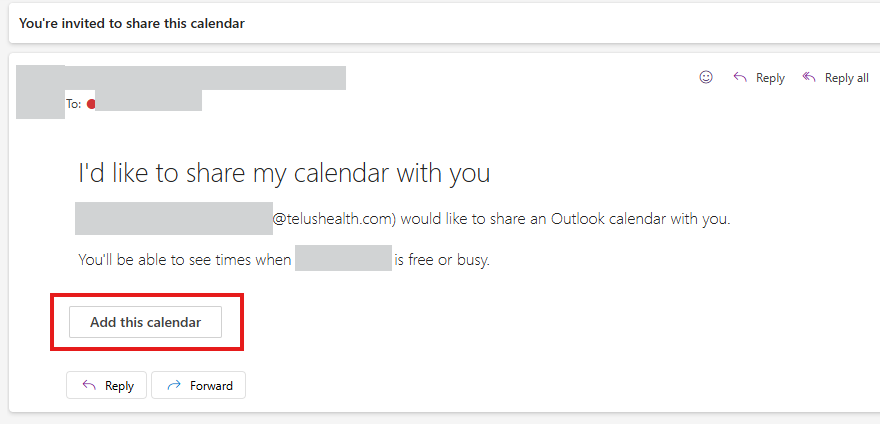
- Accept the invitation received by email.
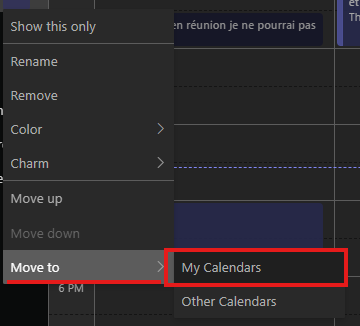
- The shared calendar will appear in Teams after a short synchronization period. Move this calendar into “Your calendars” (to be done on both accounts).
Important : Carefully check your availability statuses, busy or free slots.
Despite sharing, busy slots in your original calendar will not appear as busy in your new calendar, and vice versa. This is why it is important to re-create these meetings in the TELUS calendar.
8. Exporting Your Contacts Between Accounts
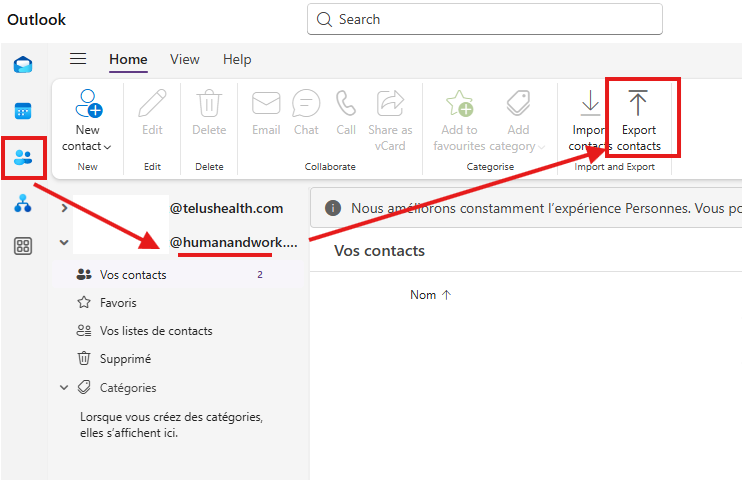
- Open the Contacts section in Outlook, then select your former account. In the menu at the top of your contacts, you will see two arrows: one to export and one to import your contacts. Export your contacts from your former account.
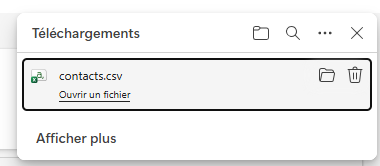
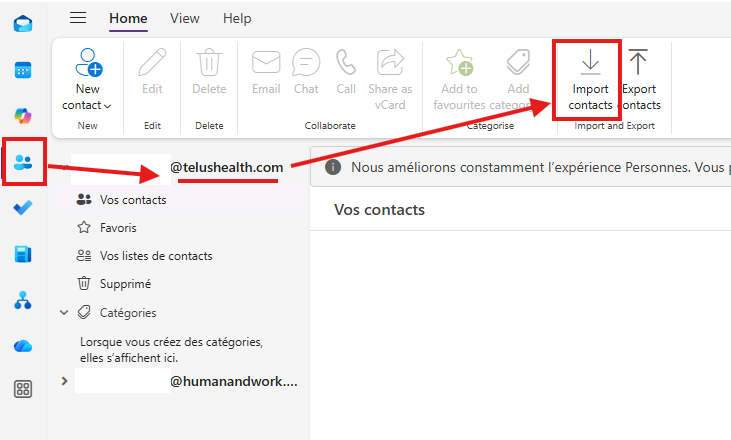
- Now select your TELUS Health account and import the CSV file you just downloaded. The import time may vary depending on the size of your address book.
Cet article a-t-il été utile ?
C'est super !
Merci pour votre commentaire
Désolé ! Nous n'avons pas pu vous être utile
Merci pour votre commentaire
Commentaires envoyés
Nous apprécions vos efforts et nous allons corriger l'article