Depending on how your account is configured, there are two ways to proceed with adding a FIDO security key as an authentication method on your Microsoft account.
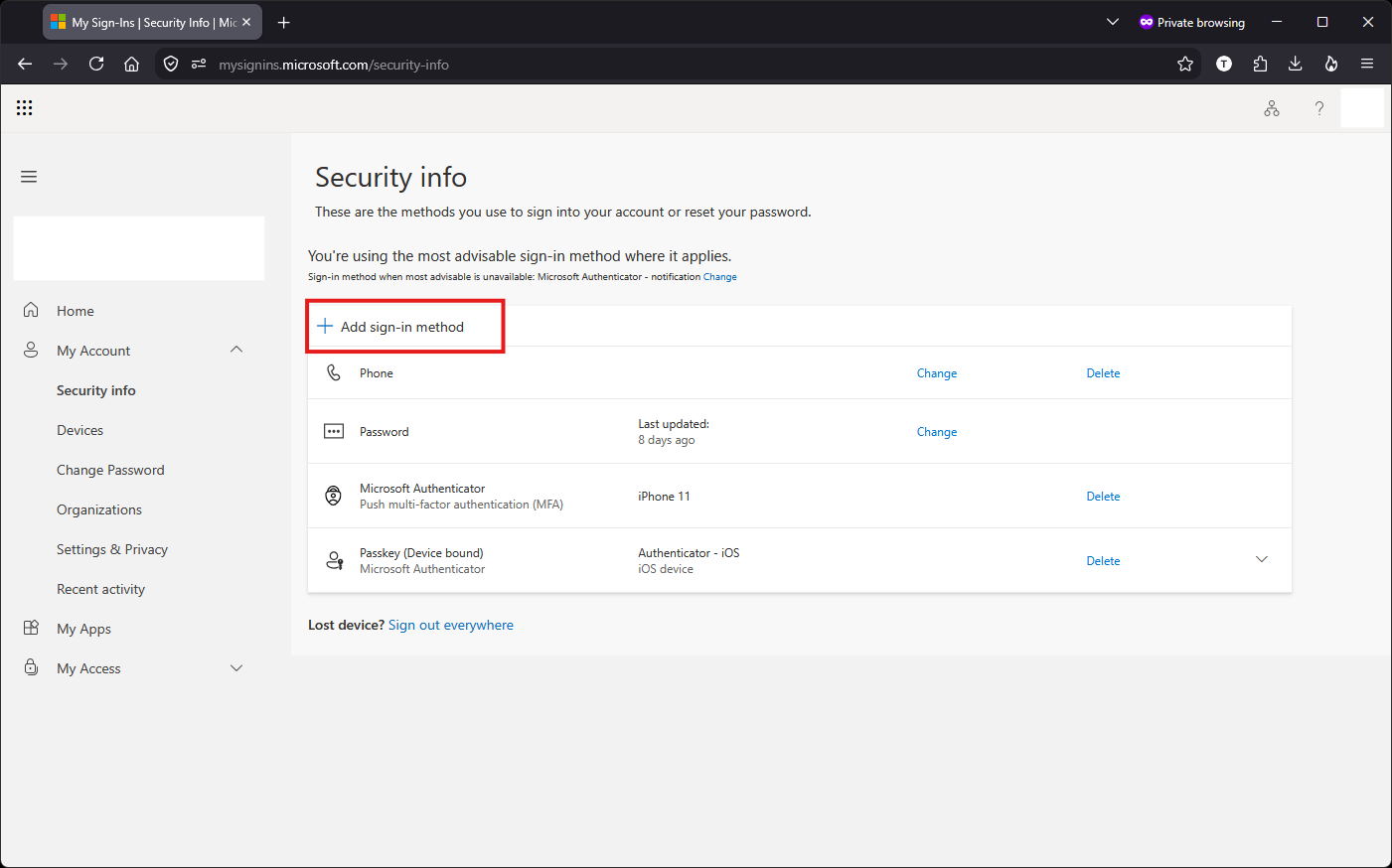
Case N°1: You have already configured a secondary authentication method on your account (for example, Microsoft Authenticator). In this case, you can directly access your Microsoft security info page and proceed with configuring your key: https://mysignins.microsoft.com/security-info
Case N°2: You have never configured an authentication method (for example, because you do not have a work phone allowing you to configure Microsoft Authenticator). In this case, the technical support must first provide you with a Temporary Access Pass, a one-time code allowing you to access your Microsoft security info page and authorizing you to configure your FIDO security key as your only authentication method.
The tutorial below will go through step by step how to proceed to configure your security key:
- Once on the Security info page (https://mysignins.microsoft.com/security-info): click "Add sign-in method"
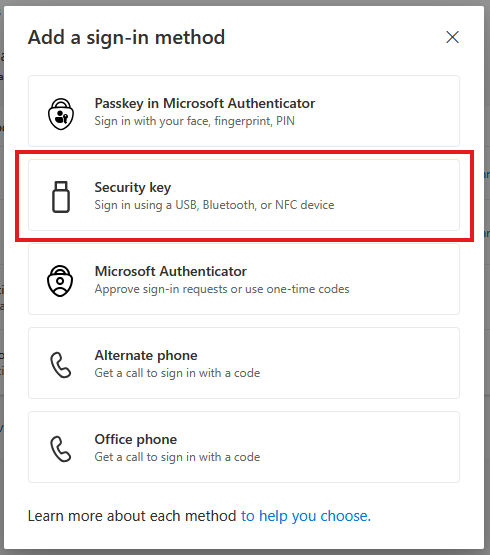
- Click "Security key"
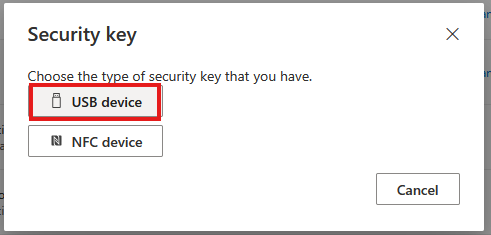
- Click "USB Device"
- Click "Next"
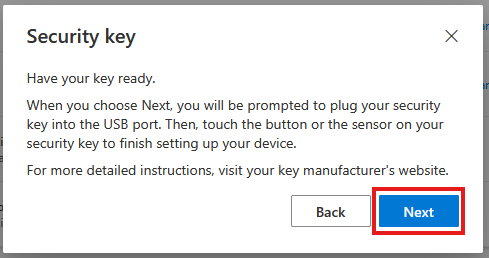
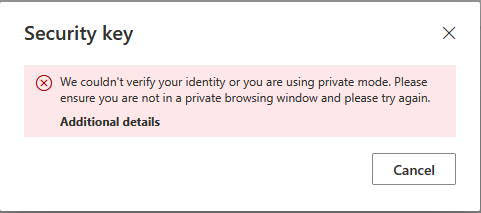 If you see an error message at this point, you can try refreshing your page and starting again from step 1
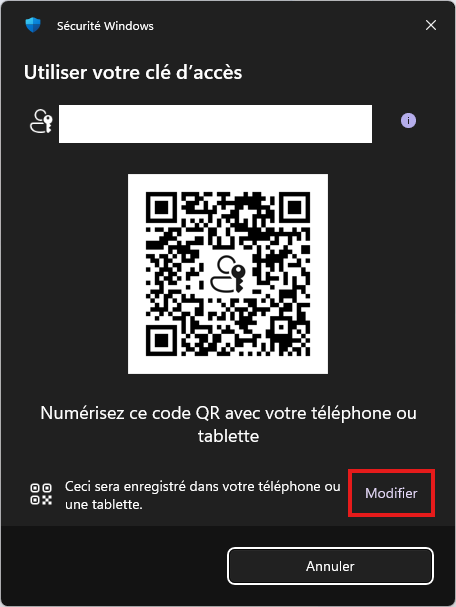
 - A Windows prompt window appears with a QR code: do not scan the QR code, this is to save your passkey to your phone, and you want to save it to your USB security key instead: click "Modify" to change the destination
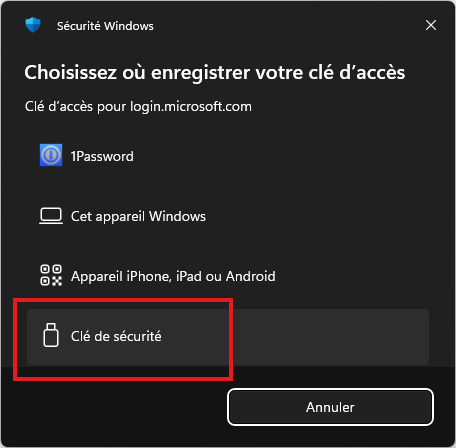
- Select "Security key"
- Enter your PIN code for your key, then click "OK"
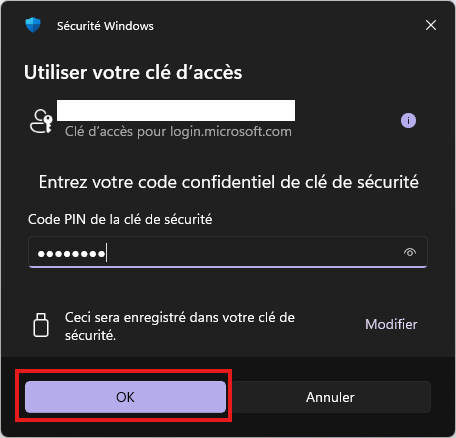
If you haven't yet configured a PIN for your FIDO security key, you can configure it now and click "OK"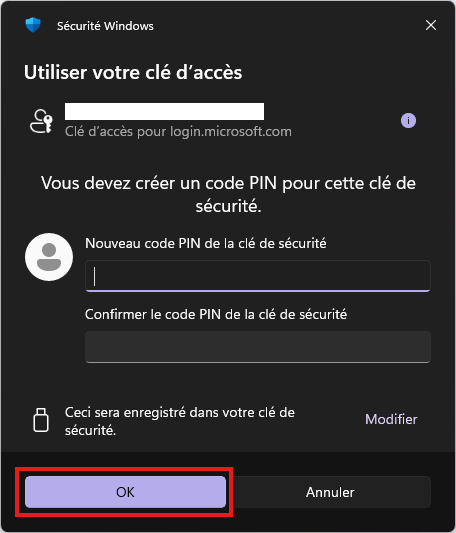
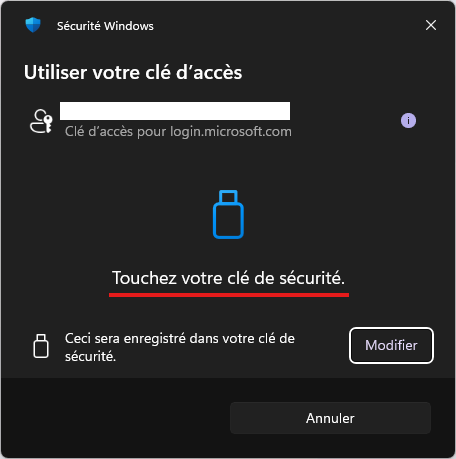
- Touch the security key to confirm
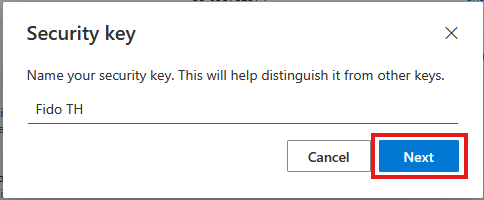
- Name your key, then click "Next (click Next only once, as this step can take a few seconds to register properly)
- Your key is now configured and functional if it appears in the list of your sign-in methods
IMPORTANT: Before you leave this page, check the password line. If your password is close to expiring (the expiration period varies depending on your account type), select “Change” and update it now.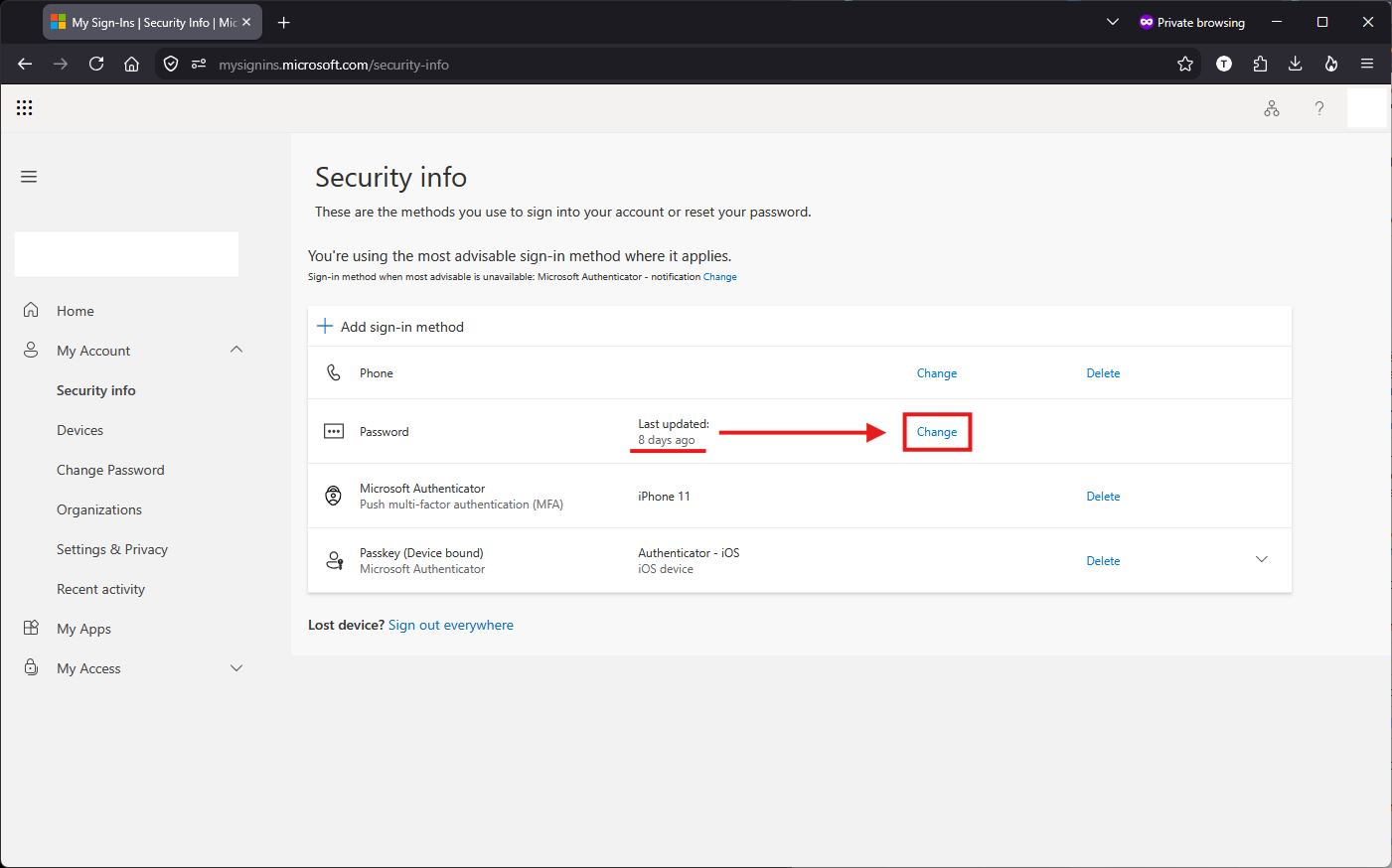
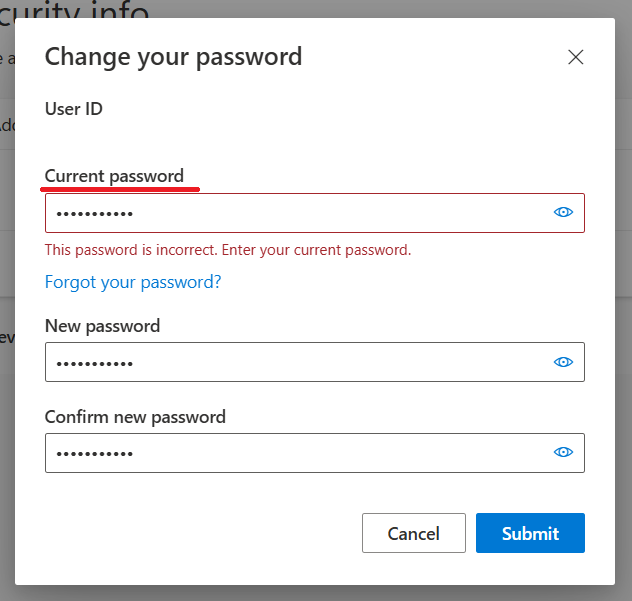 If your password has already expired, please use a temporary password provided by technical support in the “Current password” field”.
Cet article a-t-il été utile ?
C'est super !
Merci pour votre commentaire
Désolé ! Nous n'avons pas pu vous être utile
Merci pour votre commentaire
Commentaires envoyés
Nous apprécions vos efforts et nous allons corriger l'article