A passkey is a passwordless authentication method. It replaces your traditional password with a cryptographic key stored on your device, protected by your biometrics (fingerprint, face) or your PIN.
It is a more secure and easier authentication method. Here is how to set it up:
1. aka.ms/mysecurityinfo
Go to this address from your browser on your computer.
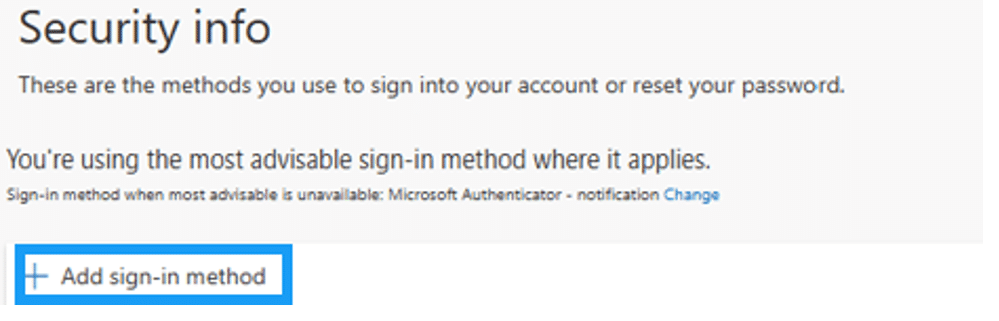
2. Click "Add sign-in method"
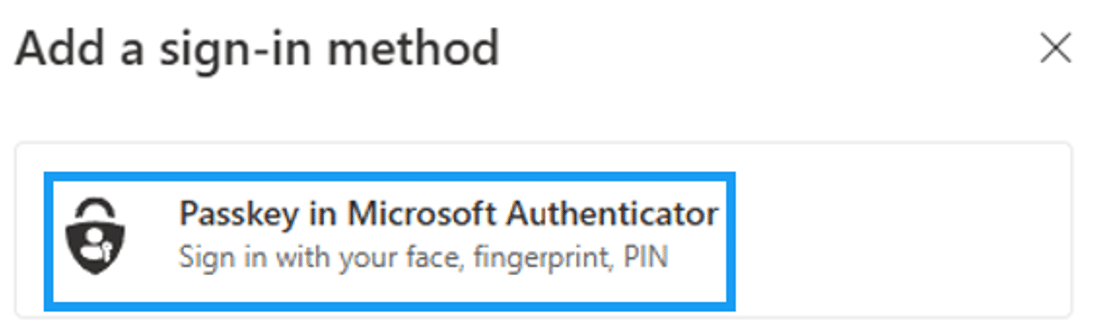
3. Select "Passkey in Microsoft Authenticator"
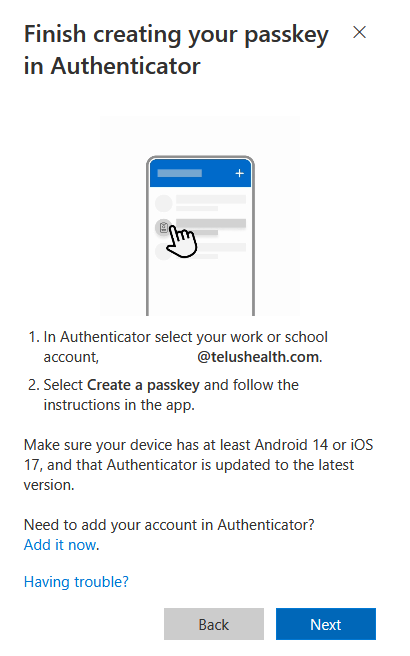
4. Make sure your device is compatible
You must have the latest version of the Microsoft Authenticator app installed, along with Android 14 or iOS 17 at minimum.
Creating a passkey is not possible without these prerequisites. Click "Next" if your device is compatible.
5. Open your Authenticator app and follow the instructions displayed on your computer, then click "Next"
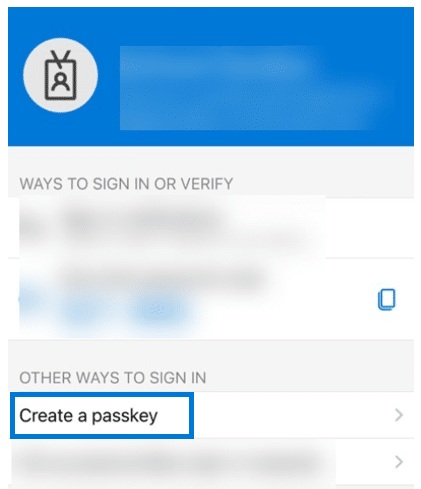
6. In the Authenticator app, tap your account then tap "Create a passkey"
7. Click "Sign in" to complete the setup
Your password and MFA method will be required at this step.
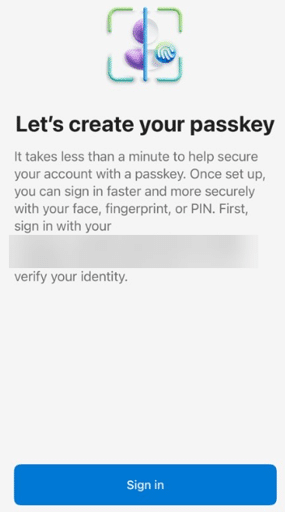
8. In your phone's settings, make sure autofill is enabled for the Authenticator app
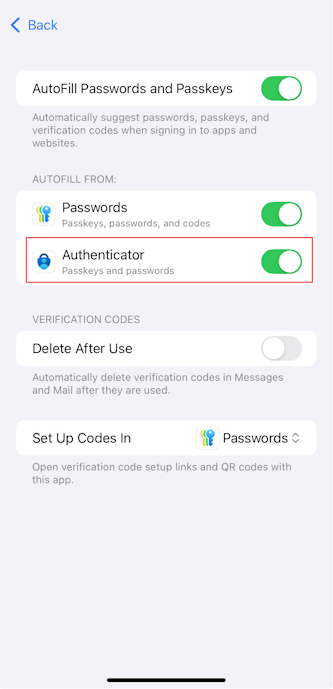
If another password manager is already active on your device, you will need to manually select the Authenticator app when prompted for credentials.
Your passkey is now properly set up. Here is how to use it:
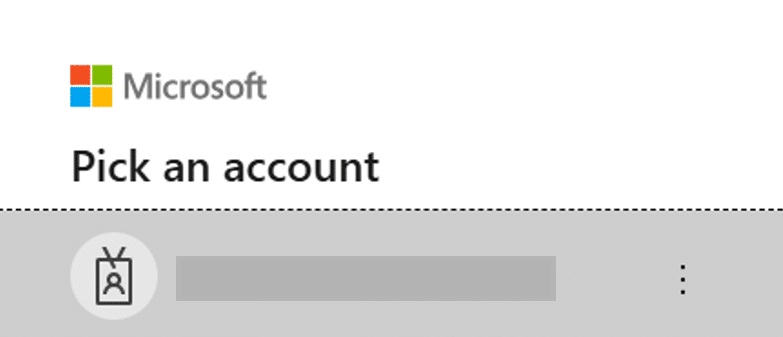
9. On your next sign-in, select or enter your account
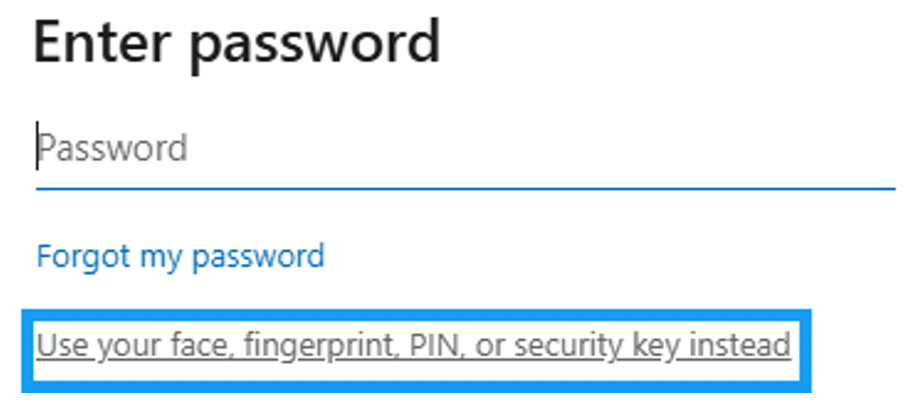
10. Instead of entering your password, select "Use your face, fingerprint, PIN, or security key instead"
11. Sign in with your passkey by choosing "iPhone, iPad, or Android device", then click "Next"
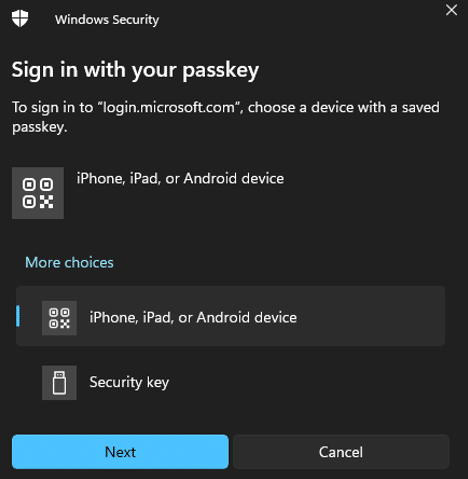
12. Enable Bluetooth on both devices, then use your camera to scan the QR code displayed
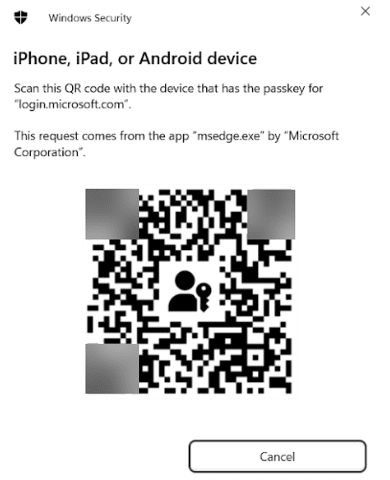
→ Your passkey will be confirmed and you will be signed in.
Cet article a-t-il été utile ?
C'est super !
Merci pour votre commentaire
Désolé ! Nous n'avons pas pu vous être utile
Merci pour votre commentaire
Commentaires envoyés
Nous apprécions vos efforts et nous allons corriger l'article