Recommended Authentication Methods
Two methods are officially recommended within the Human & Work group:
- Microsoft Authenticator in Passwordless mode - for all employees.
- FIDO2 Security Key - for employees who have been issued a YubiKey USB security key by Human & Work.
This article covers the first method only and does not address FIDO2 key setup.
Step 1 - Check Your Security Information
Go to the Microsoft security information management page:
→ https://aka.ms/mysecurityinfo
Sign in with your work account if you haven't already.
✅ What you should see |
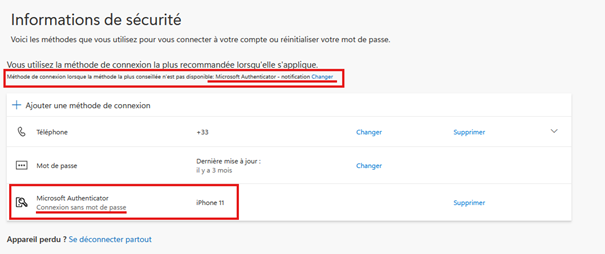
If Microsoft Authenticator is already set up and the default method is correctly configured, no further action is required.
Otherwise, follow the steps below.
Step 2 - Add Microsoft Authenticator
Skip to Step 3 if you have already set up the Microsoft Authenticator app on your work phone.
I. Download the App
Make sure the Microsoft Authenticator app is installed on your work phone. If not, download it from the App Store or Google Play.
⚠️ Official and free app |
II. Add the Method from the Portal
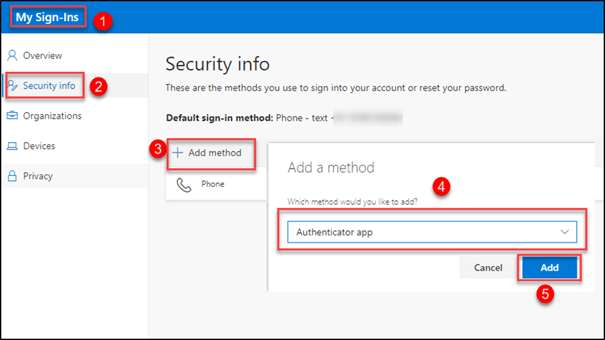
1. On the aka.ms/mysecurityinfo, click + Add sign-in method.
2. Select Authenticator app from the list, then click Add.
3. Click Next.
4. In the Microsoft Authenticator app, allow notifications if prompted.
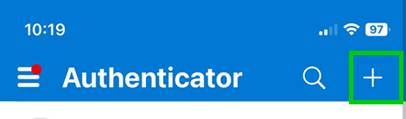
5. Tap + or Add account in the app.
6. Choose Work or school account.
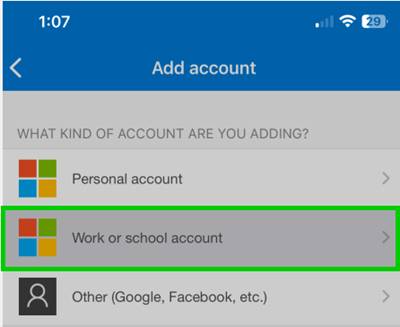
7. Click Next again in the browser.
8. In the Authenticator app, tap Scan a QR code, then point the camera at the code displayed on screen.
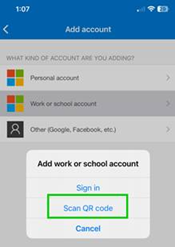
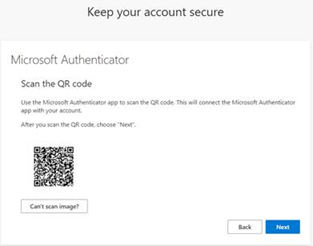
9. Once the QR code is scanned, click Next.
10. A test notification appears: a two-digit code is displayed on screen. Enter this code in the app notification and tap Yes.
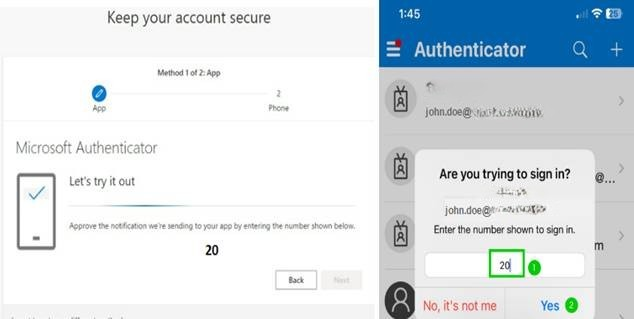
Biometric validation |
11. Click Next, then Done.
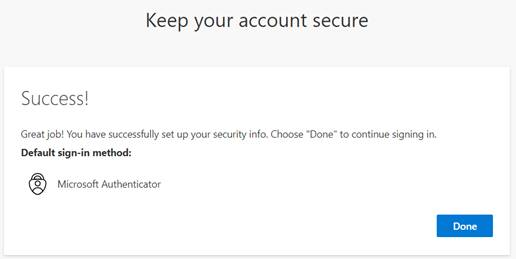
Step 3 - Set the Default Sign-In Method
The default sign-in method must be set to "Microsoft Authenticator - notification".
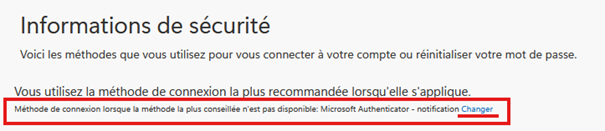
1. Sur la page aka.ms/mysecurityinfo, locate the banner at the top of the page:
"Default sign-in method when the preferred method is unavailable"
2. If the value shown is not "Microsoft Authenticator - notification", click Change.
3. Select "App-based authentication - notification" from the list and confirm.
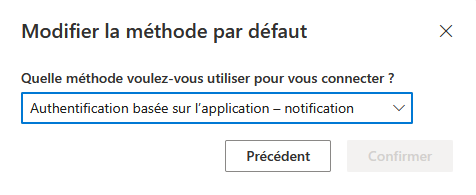
✅ Setup complete |
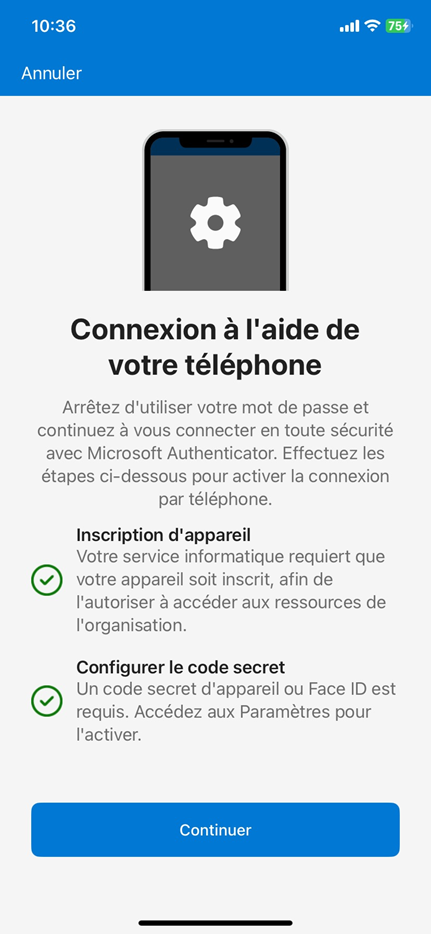
Step 4 - Enable Passwordless Sign-In
Enable Passwordless mode |
1. Open the Microsoft Authenticator app.
2. Select your account (e.g. Stimulus Conseil, Talentis...).
3. Under "Other ways to sign in", tap "Set up passwordless sign-in requests".
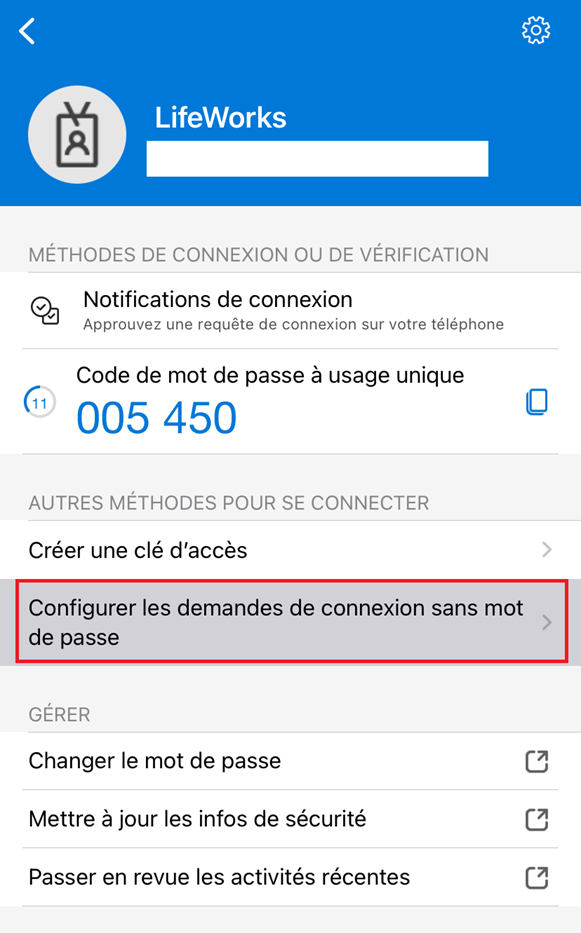
4. Follow the on-screen instructions.
- Authentication will use Face ID, fingerprint, or unlock PIN depending on your device.
Need Help?
If you encounter any issues during setup, contact support at: support@humanandwork.com
Cet article a-t-il été utile ?
C'est super !
Merci pour votre commentaire
Désolé ! Nous n'avons pas pu vous être utile
Merci pour votre commentaire
Commentaires envoyés
Nous apprécions vos efforts et nous allons corriger l'article