Passwordless sign-in enhances security and simplifies access to your Microsoft 365 account.
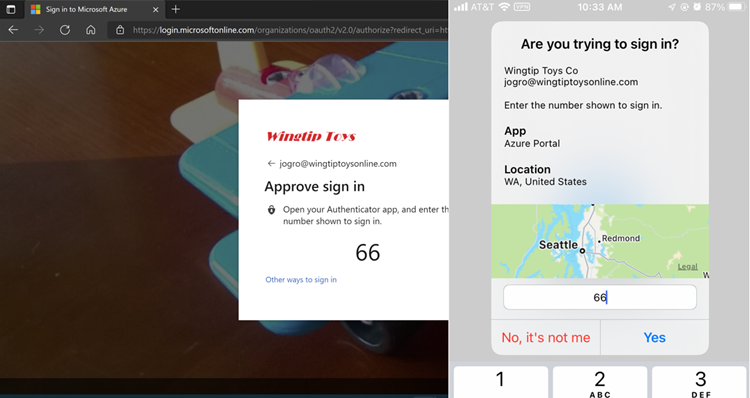
Once configured, signing in via the Microsoft Authenticator app displays a prompt asking the user to tap a number in the app, without requiring a username or password.
Why enable it?
More secure: Reduces risks associated with passwords.
Simpler: Sign in using biometrics or a passcode.
Configuration:
1. Open the Microsoft Authenticator app.
2. Select your account (e.g. Stimulus Conseil, Talentis...).
3. Under "Other ways to sign in", tap "Set up passwordless sign-in requests".
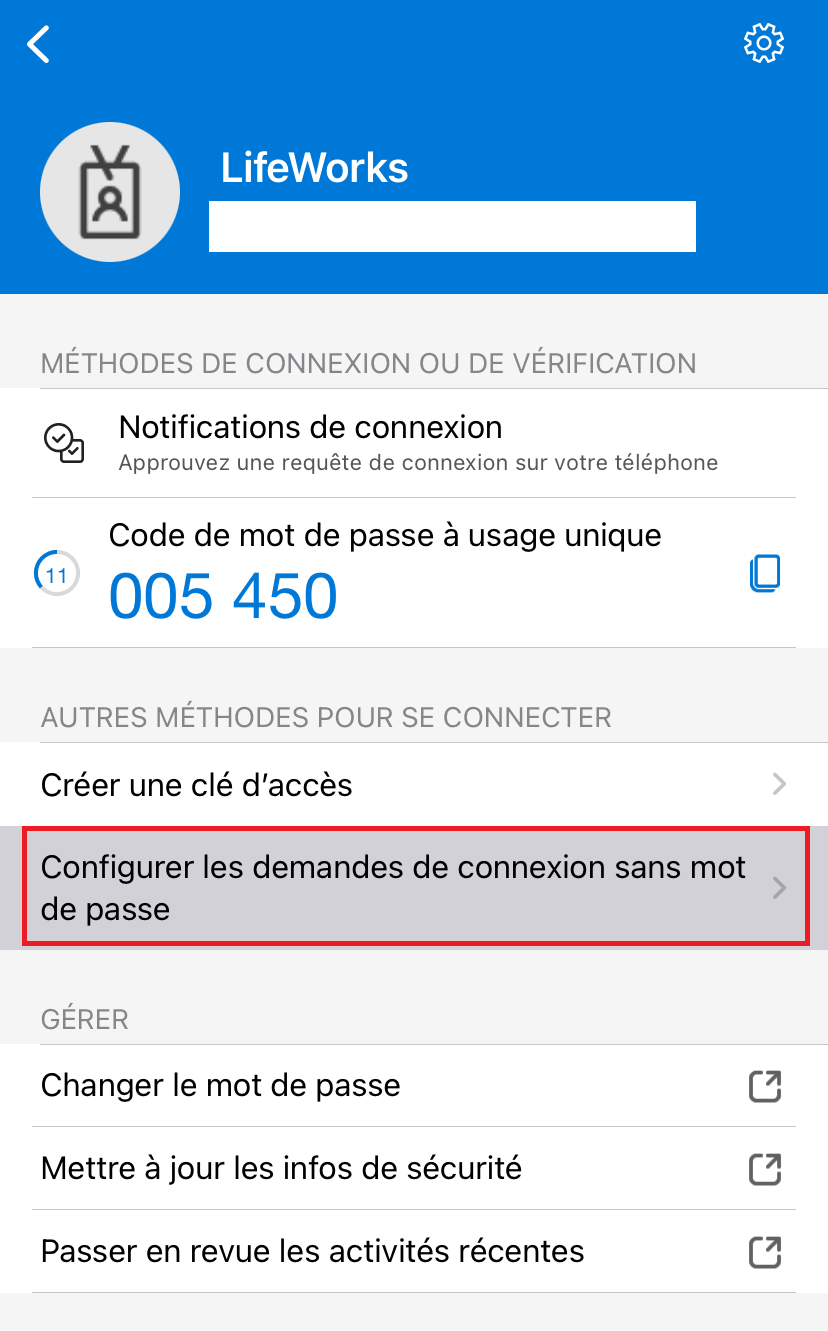
4. Follow the on-screen instructions.
Authentication will be done via Face ID, fingerprint, or unlock code, depending on your device.

Cet article a-t-il été utile ?
C'est super !
Merci pour votre commentaire
Désolé ! Nous n'avons pas pu vous être utile
Merci pour votre commentaire
Commentaires envoyés
Nous apprécions vos efforts et nous allons corriger l'article