This method allows an external third party to upload, modify, or delete files within a specific, secure folder :
1. Folder Preparation
OneDrive (Individual): Go to "My Files."
SharePoint (Team): Access your document library (via Teams, for example).
Action: Create a new folder (ex :
DEPOT_NOMCLIENT) to isolate these exchanges from your other documents.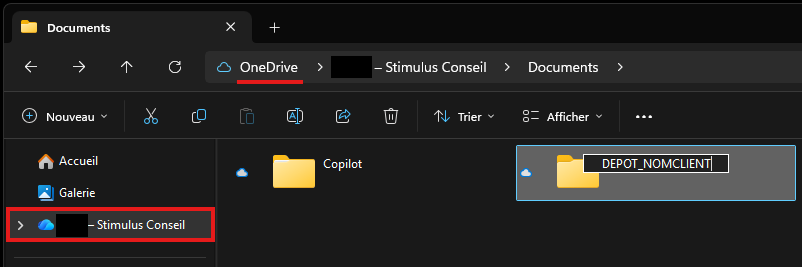
2. Access Configuration
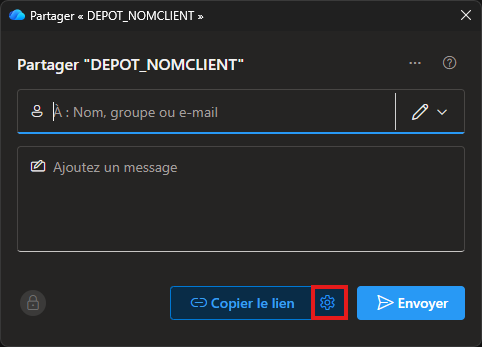
Right-click on the folder and select Share.
Click the Settings icon (the gear wheel) before sending the link.
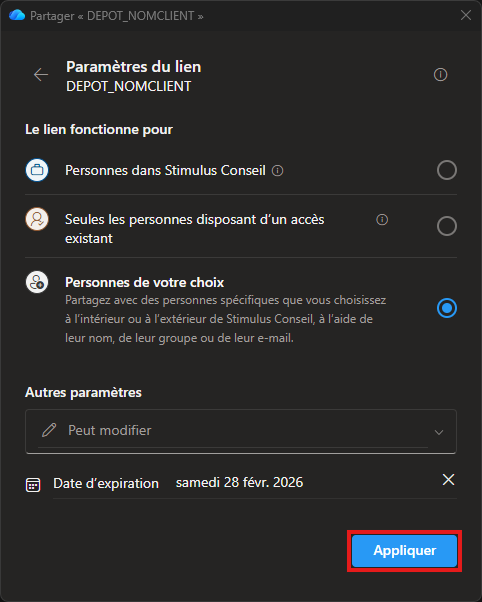
Under "Sharing settings," select Specific people (this is the most secure option, requiring code verification from your recipient).
Under "More settings," ensure Can edit is selected, and set an expiration date if possible.
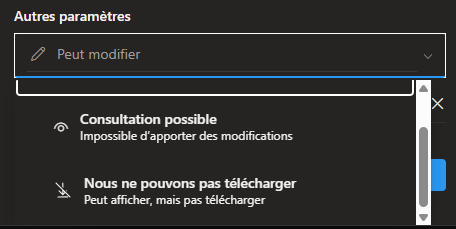
Note : Without editing rights, the recipient will be able to read the files but will not be able to add any. Not granting write access is appropriate if your goal is to share documents rather than receive them. In that case, you can choose to provide read-only access or also allow downloading of the files located in the shared folder we just created. You can refer to this additional article for more information.
Click Apply.
3. Sending and Verification
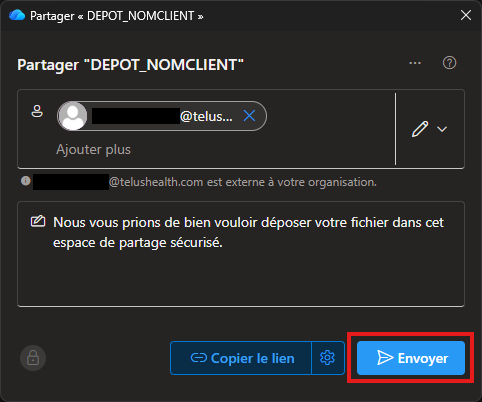
- Enter the email address of your client or supplier.
- Click Send.
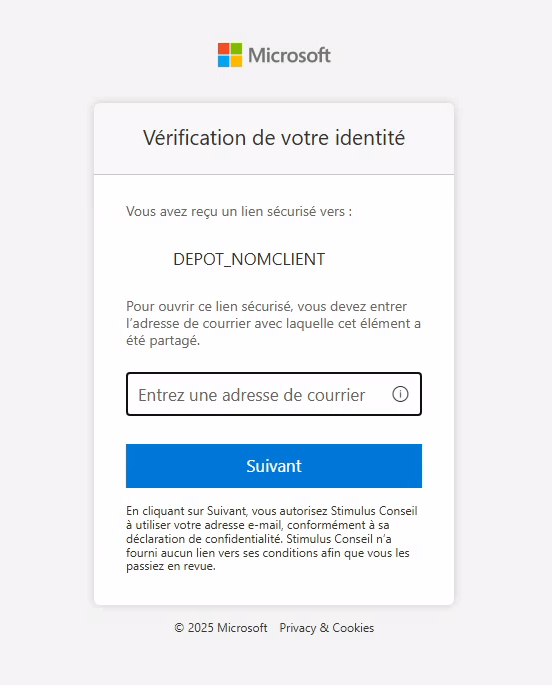
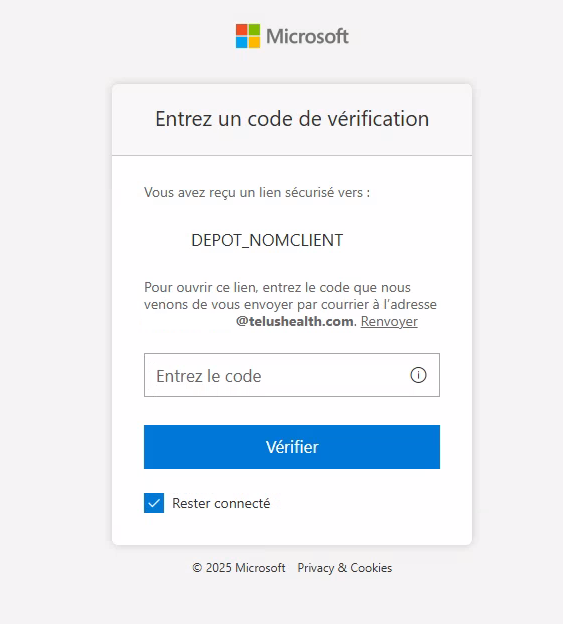
- The recipient will receive an email with a link. Upon opening it, Microsoft will send a temporary verification code to their inbox to validate their identity :
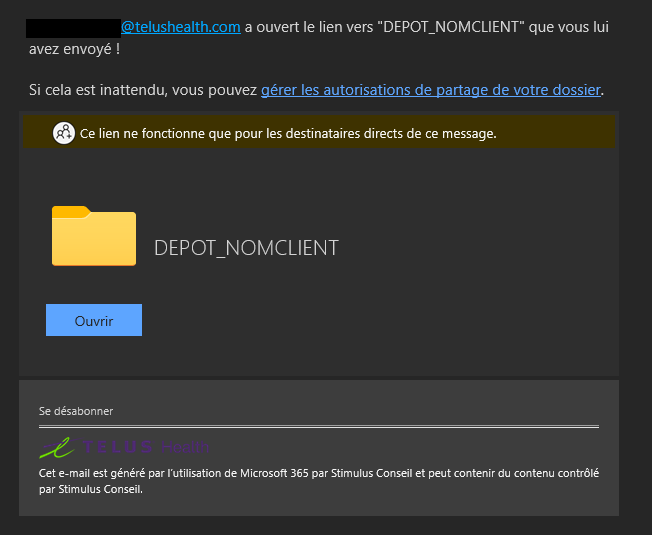
- You will also receive a read confirmation via email.
Cet article a-t-il été utile ?
C'est super !
Merci pour votre commentaire
Désolé ! Nous n'avons pas pu vous être utile
Merci pour votre commentaire
Commentaires envoyés
Nous apprécions vos efforts et nous allons corriger l'article