Although this article focuses on the process using SharePoint, the method described applies identically to sharing a file or folder from your personal OneDrive.
Important note: external sharing links automatically expire after 180 days. However, remember to disable sharing as soon as it's no longer needed.
Steps to Follow:
- Access the Document Library in SharePoint
- Open the relevant team in Microsoft Teams and click on the Files tab.
- Open the relevant team in Microsoft Teams and click on the Files tab.
Create a Dedicated Folder for Sharing
- Click on New > Folder.
- Name the folder (e.g., "External Sharing - Read Only").
 Drop the files you want to make available to your external contact here.
Configure Folder Permissions
- Select the newly created folder, click on the three dots (...) or right-click, and choose Manage Access or click on Share and then select the settings gear icon for advanced controls.

- Choose Specific People and View Only to prevent edits or modifications. Alternatively, enable the Block Download option if downloads should be restricted.

- Select the newly created folder, click on the three dots (...) or right-click, and choose Manage Access or click on Share and then select the settings gear icon for advanced controls.
Add External Users
- Enter the email addresses of external users who need access to the folder.
- Ensure the sharing link only allows View Access.

- Send the Invitation
- Click Send on the sharing window.
- The recipient will receive an email with a link. Upon opening it, Microsoft will send a temporary verification code to their inbox to validate their identity :
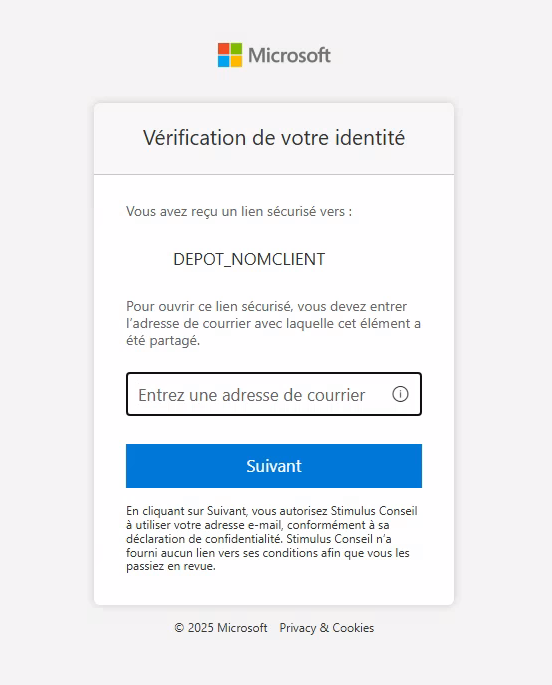
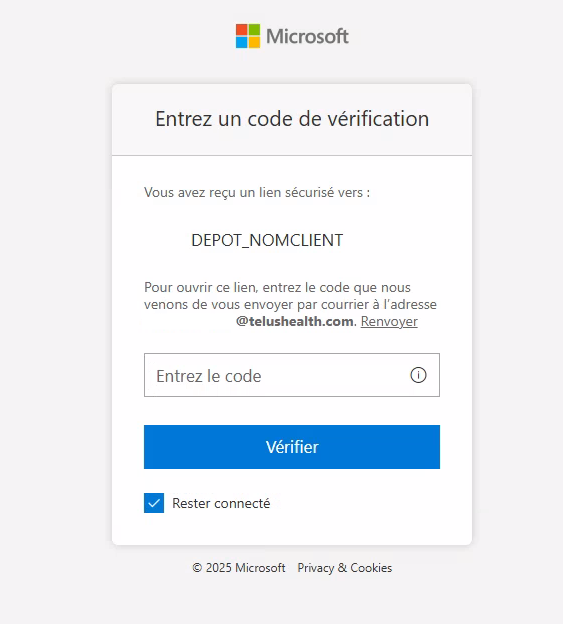
- You will also receive a read confirmation via email.
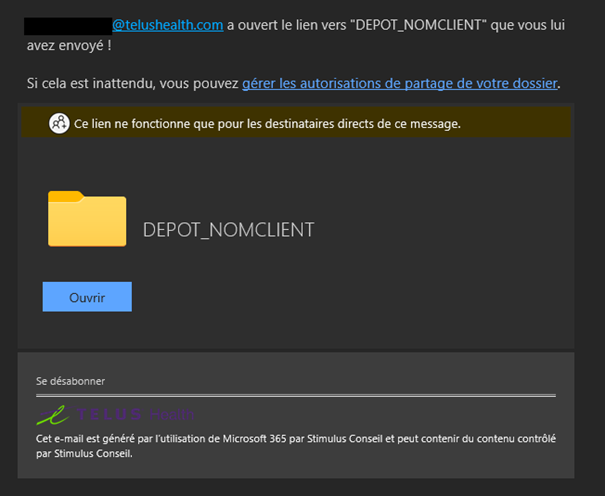
Monitor and Adjust Permissions
- Return to SharePoint’s access management settings to modify or revoke permissions at any time.


Cet article a-t-il été utile ?
C'est super !
Merci pour votre commentaire
Désolé ! Nous n'avons pas pu vous être utile
Merci pour votre commentaire
Commentaires envoyés
Nous apprécions vos efforts et nous allons corriger l'article